WebSphere Portal v8.x Theme Profiles and Modules

A lot of work has been done to the theme architecture in the latest versions of WebSphere Portal. One of the nice things built into the theme architecture is being able to change the profile for each Portal page, the profile being made of web resources, such as HTML, CSS and JavaScript files and libraries. This allows you to load only the necessary resources on a page-by-page basis. The profile is made up of one to many modules, the modules containing the various web-based resources (i.e. HTML, CSS, JavaScript). An example of a module would be jQuery, meaning, if the jQuery module is added to a profile, any page that uses a profile containing the jQuery module would pre-load the jQuery resources that make up that module, in turn, allowing any portlets on that page to use the jQuery resource (i.e. libraries) as well. Another example of a module would be the Content Template Catalog (CTC) module, which loads all of the web resources libraries required by CTC.

In a prior blog post (here), I discussed a way to show / hide the Edit Mode link contained within the theme. In v8.5, the Edit Mode link is replaced by the new Site Toolbar (click here to read more about the Site Toolbar). The Site Toolbar is another example of a module that is placed in all of the v8.5 profiles, so to remove the Site Toolbar, it would be as easy as removing the Site Toolbar module from any of the profiles associated with Portal pages in which you don’t want the Site Toolbar to be displayed.

Click here to learn more about Developing Themes for WebSphere Portal v8.5.

Who Says You Can’t Do Client-side Development using IBM Web Content Manager?

I had the opportunity to develop a Proof of Concept using WebSphere Portal and IBM Web Content Manager for a customer recently in which I’ve been looking to incorporate more client-side capabilities into a WCM-based PoC. Working with the customer and understanding their requirements, I figured there was no better opportunity. In building out the PoC, the only server side requests required are to switch between pages (i.e. WCM site areas) and to create, edit or delete content (using the WCM in-context editing capabilities).

Let me give some brief details on how this was done. The core components that make up the PoC are mostly WCM HTML components used to markup the various sections of the page. Beyond that, it’s basically a single navigator component (for navigating between site areas or pages) and a single (hidden) menu component for getting all of the required content for the selected page or site area. Because of the nature of the application containing mainly client side functionality, the menu component was built to return a JSON object (versus HTML markup) representing all of the content on the page. This JSON object could then be manipulated and used throughout the various capabilities and/or HTML components provided within the application. I’ll also give a shoutout to jQuery, as this opportunity gave me a chance to further dig into the JavaScript library. I was thoroughly impressed by the ease, flexibility and native features it provides, such as drag-and-drop and type-ahead, as well as the number of JavaScript-based libraries the jQuery community has built. I was able to easily incorporate a couple of the jQuery libraries I found in the accompanying demo (i.e. content tiling, customized scrollbars) to provide a better user experience in meeting the customer requirements.

I’ll be posting a demo of the work done during this PoC shorty…

Social Commenting in IBM Web Content Manager

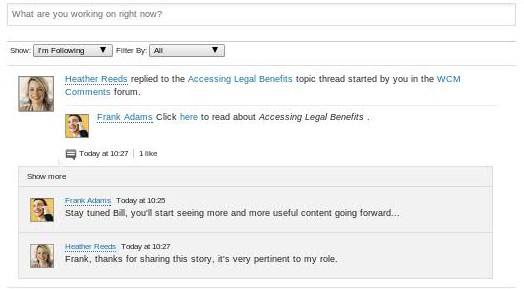
As far as WCM has come over the past few years, one of the capabilities that is still constantly requested and missing is the ability to easily add commenting on a content item.  We have a specific use case with a customer I’m working with now, only taking comments to the next level in that they’re looking for comments posted on a WCM content item to also be posted to a user’s social feed (i.e. Activity Stream).  The latest Social Rendering Templates (here) now provide CRUD capabilities, allowing users to not only consume social content, but also be able to engage with the social content.  One of the sample templates provided is for Forums / Topics, and the templates allow you to read, post / reply, delete and like forum topics and replies, which includes nested topic replies.  While playing around with the Forums / Topics template, I thought it would be a perfect fit for being able to extend this functionality to web content, which by the nature of it also being social content, would then be embedded into a user’s social feed.

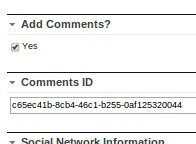
The next step was figuring out how to make Forum / Topics specific to web content items so that the appropriate Forum Topic was shown based on the selected web content item.  Digging into the social rendering templates, I found how the List Rendering (i.e. part of the DDC framework) capability worked, so figured I could create a Forum for all WCM comments, and then there could be an associated Forum Topic for each content item in which a WCM content author wanted to allow comments for.   As a starting point, I took the Forums / Topics social rendering template example as a starting point and embedded it into a content item’s presentation template.  I then manually overrode the topic id so that it would show a forum topic specific to that id.  The next thing to do was to add a couple of fields to the authoring template for content type’s in which you’re looking to allow content.  In my example, I added two fields / elements, one is a checkbox that allows content authors to choose whether they want to allow comments for a content item, and the second is a simple text field that holds the topic ID (it would be hidden from the content author).  I also had to create a custom workflow action which programatically created the forum topic when a content item was published and then set the topic id on the content item, which then in turn would be used within the presentation template as described above to add the comments to the content item.

Here’s a summary of the necessary steps to get this to work: (at a high level)

  1. Manually create a Forum in Connections for WCM Comments
  2. Add the necessary elements (i.e. Add Comments?, Topic ID) to the WCM authoring template(s) of the content items in which you’re looking to add comments.
  3. Embed the Forums / Topics social rendering capabilities into the associated content’s presentation template(s).
  4. Create a custom WCM workflow action that programatically creates a Forum Topic (within the manually created WCM comments forum) when a content item is published.  The workflow also updates the content item with the topic / comment ID given the result from the programmatic creation of the Forum Topic.  I also added some logic to create a link to the WCM content item within the initial topic entry.

Here are some screen shots of the results:

Authoring Template Elements Screenshot Shot of Social Commenting Screenshot of Comments in Social Feed
comments-auth-template-upd content-item-with-comments-upd activity-stream-upd

I have working code, deployable as a PAA in which I’d be happy to share, let me know if you have any questions or would like to discuss this asset further…

Fixing a Social Media Publisher error with Facebook Page Social Network Configurations

While configuring Social Network Configuration content, specifically for Facebook, I was getting mixed results when publishing to Facebook using WCM’s Social Media Publisher capability.  After noticing it was happening a majority of the time while trying to publish to a Facebook page (versus a personal wall post), I dug into it a bit and noticed an SQL exception being thrown in the logs.  I opened a PMR within IBM support and worked with them to track down an issue in which a table column being used for SMP was too small relating to the (credential) vault data.  If you’ve ever worked with SMP, you’ll notice an associated credential vault entry gets created when you create a Social Network Configuration through SMP, and this was the process which was attempting to insert a row into this table and the password was too long for the allotted field.  To manually fix this issue, you can modify / alter the RELEASE.VAULT_DATA table, specifically the PWD column which stores the password.  By default, it is defined as a VARCHAR 255, you can simply update it to be 355 characters instead, and this should resolve your issue.  I believe an APAR was opened for this, but I’m not sure where this is as far as being resolved and/or which CF it may be included in.

Hope this helps, feel free to reach out with any questions…

WebSphere Portal Feedback Form using Forms Experience Builder

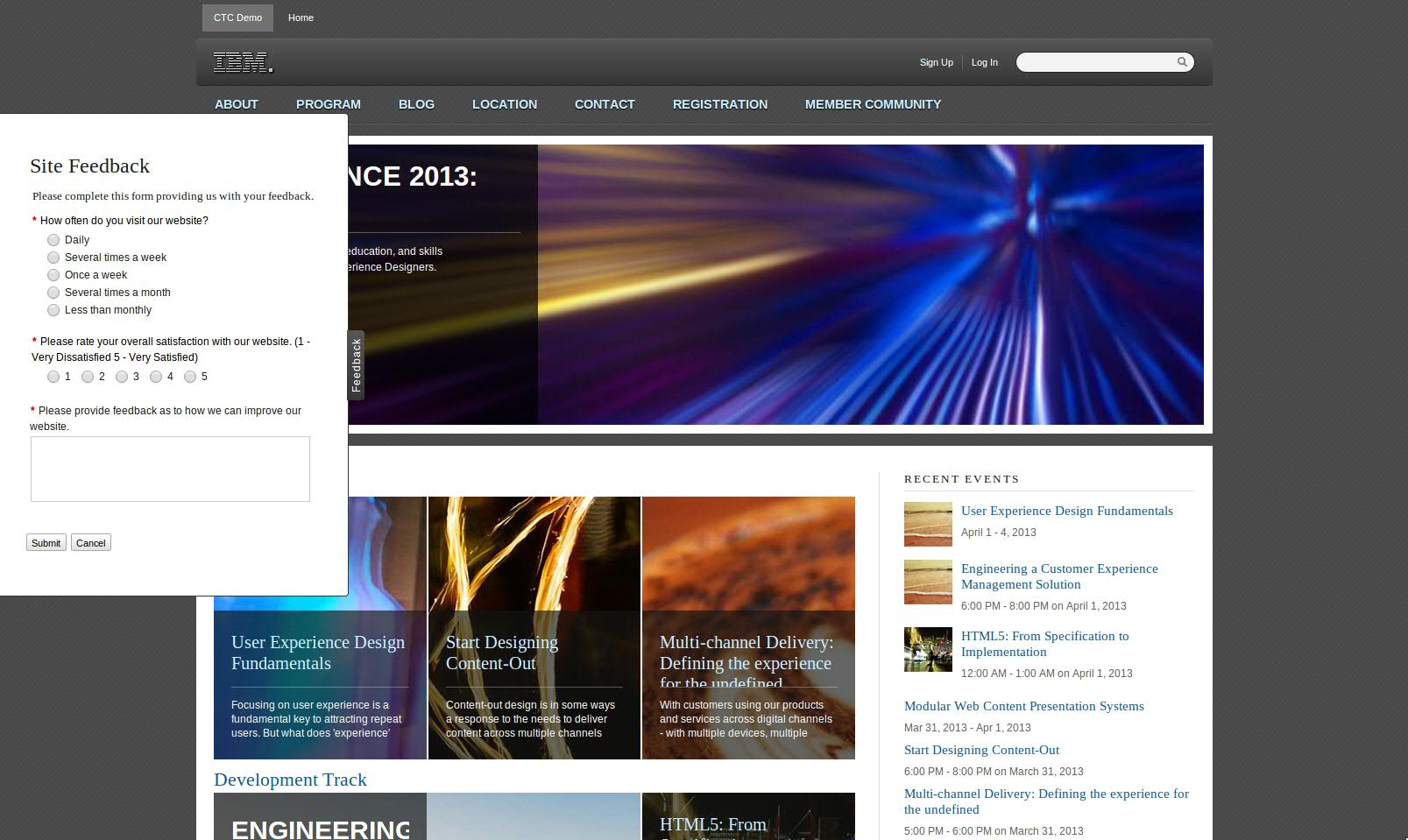
I created a demo asset of a feedback widget that is embedded in the out-of-the-box WebSphere Portal v8.x theme and presented on every Portal page. This widget can easily be embedded in any theme, for sharing purposes, I created it using the out-of-the-box theme, though the code can very easily be copied and pasted into any theme’s file. For simplicity, I was not concerned about placing any JavaScript or CSS in associated file rather I used all inline JS, CSS and HTML. If this were to be done in an actual WebSphere Portal application, a better thought would be to create a dynamic content spot with the widget code. Anyway, feek free to reach out for the asset I developed for this, it simply consists of a theme_en.html file and associated form .nitro_s file if you wish to install it. Here are a couple of screen shots as well: