Social Commenting in IBM Web Content Manager

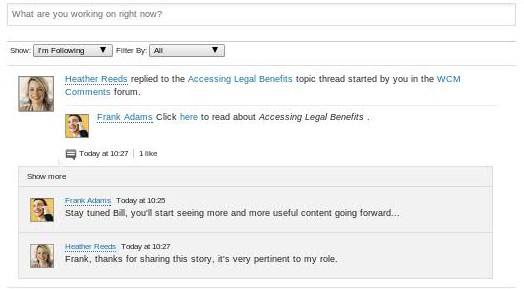
As far as WCM has come over the past few years, one of the capabilities that is still constantly requested and missing is the ability to easily add commenting on a content item.  We have a specific use case with a customer I’m working with now, only taking comments to the next level in that they’re looking for comments posted on a WCM content item to also be posted to a user’s social feed (i.e. Activity Stream).  The latest Social Rendering Templates (here) now provide CRUD capabilities, allowing users to not only consume social content, but also be able to engage with the social content.  One of the sample templates provided is for Forums / Topics, and the templates allow you to read, post / reply, delete and like forum topics and replies, which includes nested topic replies.  While playing around with the Forums / Topics template, I thought it would be a perfect fit for being able to extend this functionality to web content, which by the nature of it also being social content, would then be embedded into a user’s social feed.

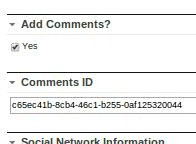
The next step was figuring out how to make Forum / Topics specific to web content items so that the appropriate Forum Topic was shown based on the selected web content item.  Digging into the social rendering templates, I found how the List Rendering (i.e. part of the DDC framework) capability worked, so figured I could create a Forum for all WCM comments, and then there could be an associated Forum Topic for each content item in which a WCM content author wanted to allow comments for.   As a starting point, I took the Forums / Topics social rendering template example as a starting point and embedded it into a content item’s presentation template.  I then manually overrode the topic id so that it would show a forum topic specific to that id.  The next thing to do was to add a couple of fields to the authoring template for content type’s in which you’re looking to allow content.  In my example, I added two fields / elements, one is a checkbox that allows content authors to choose whether they want to allow comments for a content item, and the second is a simple text field that holds the topic ID (it would be hidden from the content author).  I also had to create a custom workflow action which programatically created the forum topic when a content item was published and then set the topic id on the content item, which then in turn would be used within the presentation template as described above to add the comments to the content item.

Here’s a summary of the necessary steps to get this to work: (at a high level)

  1. Manually create a Forum in Connections for WCM Comments
  2. Add the necessary elements (i.e. Add Comments?, Topic ID) to the WCM authoring template(s) of the content items in which you’re looking to add comments.
  3. Embed the Forums / Topics social rendering capabilities into the associated content’s presentation template(s).
  4. Create a custom WCM workflow action that programatically creates a Forum Topic (within the manually created WCM comments forum) when a content item is published.  The workflow also updates the content item with the topic / comment ID given the result from the programmatic creation of the Forum Topic.  I also added some logic to create a link to the WCM content item within the initial topic entry.

Here are some screen shots of the results:

Authoring Template Elements Screenshot Shot of Social Commenting Screenshot of Comments in Social Feed
comments-auth-template-upd content-item-with-comments-upd activity-stream-upd

I have working code, deployable as a PAA in which I’d be happy to share, let me know if you have any questions or would like to discuss this asset further…

Introduction to the WebSphere Portal Solution Installer

The introduction of the Solution Installer has been an excellent addition to the WebSphere Portal product.  Having worked with Portal for years, a comprehensive deployment tool for all of the various Portal resources and assets has always been lacking to put it nicely.  After recently developing a polling widget for Portal / WCM, I figured the best way to make it reusable for colleagues was to make it easily deployable, especially considering there are many different Portal resources involved in deployment of the asset (e.g. .war, WCM library, user, access control, etc.).  I decided to dive in and create my first Portal Application Archive (or PAA).  I’ll by no means claim to be an expert, but at least getting started was relatively painless.  I downloaded and installed the Solution Installer and along with it, is documentation on how to create and use the Solution Installer.  Because I never find reading documentation to be the easiest way to learn something new, I also downloaded an existing PAA asset (a lot of the Portal Solution Catalog assets (here) are now packaged as a .paa) and extracted it to “see” what a .paa actually looks like. At the root of the .paa file is the configuration XML file (sdd.xml) and documentation and components folders.  You can store any documentation relating to your PAA within the documentation folder and the components folder is the root folder in which all of your various Portal resources to deploy will be contained, we’ll talk about that further in a second.  Let’s start with the configuration XML file, or sdd.xml. I started with an existing sdd.xml from the PAA that I extracted and the key elements to be concerned with are the PAA name, version, displayName and then the containedPackage element, which contains the path within the PAA to another XML configuration file which automatically gets generated during the deployment process (also named sdd.xml). The XML configuration file that gets generated is done so based on the contents of the subdirectories of the components folder and is used by the PAA installation process to determine what needs to be executed. Under the components folder will be a folder given the name of the PAA (in my case, polling) which contains subdirectories for each of the various Portal resource types. In my case, I had two subdirectories, content and installableApps and the content subdirectory also contains two subdirectories, xmlaccess for XML access-based resources and wcm for WCM-based resources. Within each subdirectory, you can simply drop the associated resource(s), for example, .xml files within the xmlaccess subdirectory. You may also notice an order.properties file within each subdirectory so that you can tell the Solution Installer in which order you would like your resources deployed. The installableApps directory contains any deployable enterprise (.ears) and/or web applications (.wars) that are to be installed or updated, in my case, the Polling widget / portlet .war. Again, the Solution Installer does include documentation which I’ll admit is actually pretty good.  I would definitely recommend downloading and following this, but I also wanted to document my experience and perhaps give a primer on the Solution Installer. There is MUCH more to the Solution Installer than I’ve mentioned here, such as the ability to install and update other Portal resource types as well as the ability to write custom scripts, here is a link to a white paper / user guide for the solution installer. As always, feel free to reach out with any questions!